|
|

InfoExpress for Incident Reporting
The InfoExpress is ideal for organizations that have
a need to enter information into the Parklane System from remote
sites. This will normally be in the form
of adding incident information directly into the Parklane System rather
than sending or faxing paper documents to a central site. Examples of these types of organizations
would be school boards, retail stores, and distribution centers.
Benefits
·
Offsets
the function of entering data from head office to the field.
·
Incidents and time entries can be entered 24 hours a day, 7 days per
week.
·
Has a major effect on improving procedures used for recording incidents
and time off.
·
Head Office is automatically notified by email when an incident has
been added.
Under InfoExpress, there are
two types of users:
·
The Super User at head office who has complete access to Incident
Reporting and manages the incidents.
·
The Express User at the remote site who simply records an incident that
has occurred.
What can be done in Incident Reporting
The
Express User can:
·
Add
new incidents.
·
Add
follow-up comments regarding an incident. (This is an option).
·
Notify employee’s return to work. (This is an option).
·
In applicable jurisdictions, enter the return-to-work form. (This is an
option)
·
View the status of a claim. (This is an option)
·
The Express User is restricted to certain panels:
Description
Types, Causes and
Corrections
Miscellaneous
Attributes
Comments
WCB/WSIB forms
The Super User can globally
deny access to any of these panels.
How it Works
1.
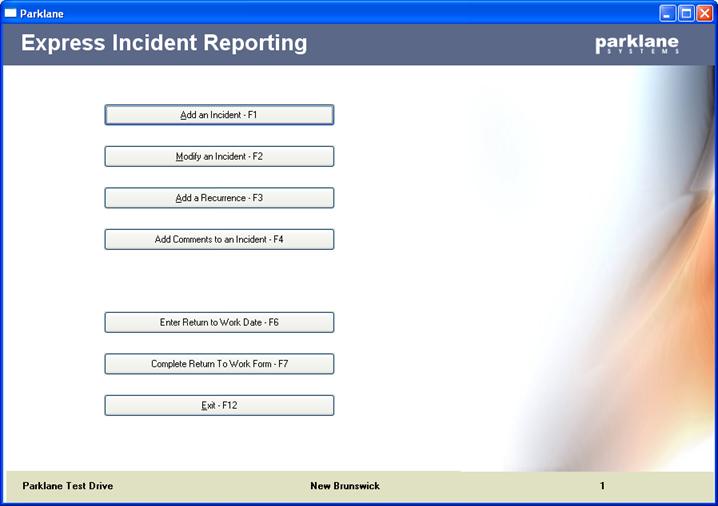
When an incident
occurs, the Express User records it into the system. Their User-id will indicate that this is an
Express User and an alternated menu is used rather than the standard menus from
the full Parklane System.
·
The user adds the
incident. When they complete the
incident and exit to the menu, they may go back to that incident, as many times
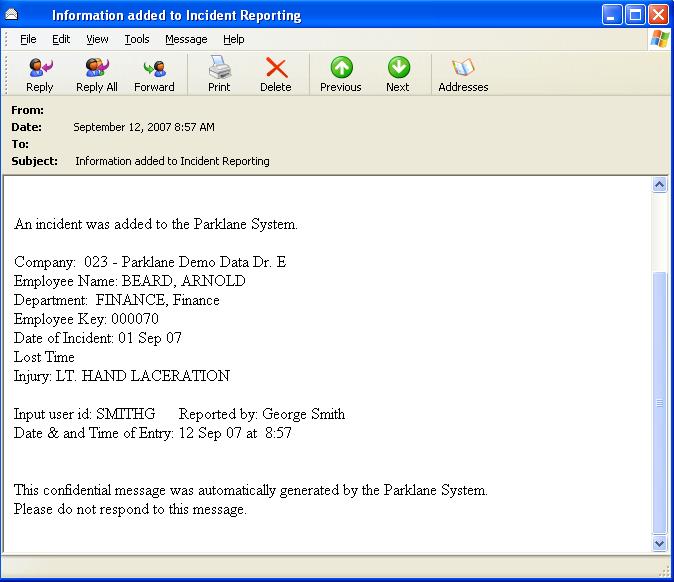
as needed, to make modifications. Whenever an incident is added by an Express
User, an email is automatically sent to the people who need to know.
Note: On the email, as shown below, an option is
available to exclude the employee’s name and their injury.
2.
Once the Super
User reviews the incident, it becomes inaccessible to the Express User.
At the bottom of the Description panel, there is a check-box indicating such.

If the Super User feels that more information is required by the Express User,
they may un-check the box giving the Express User access again. However, every time the Super User reviews
the incident it automatically becomes locked and inaccessible to the Express
User.
3.
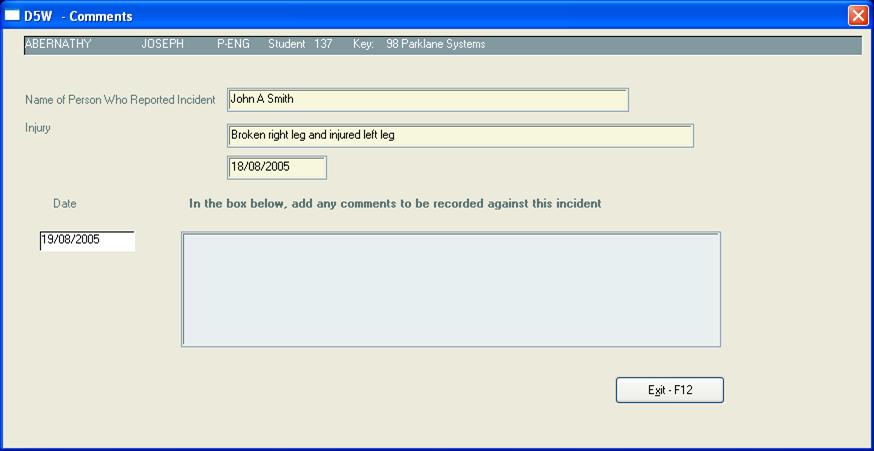
If given the
rights to do so, the Express User may, at anytime, add follow-up comments.
The Super User will be notified accordingly.
Within in the limit of their access rights, the Express User may add comments
for any claim.
4.
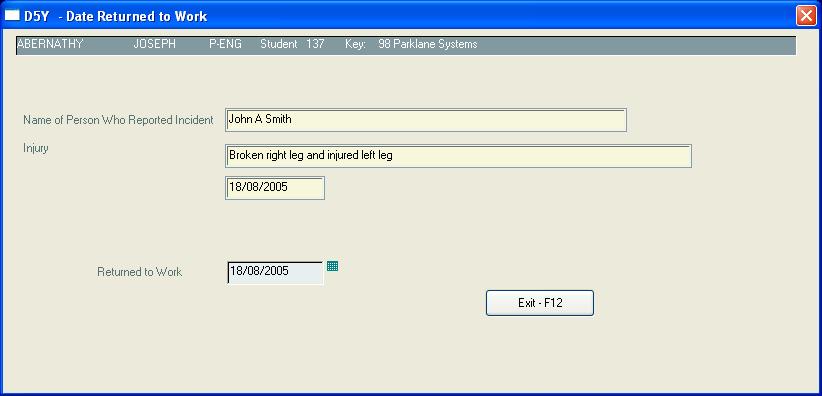
If given the
rights to do so, the Express User may indicate that the employee has returned
to work.
The Super User will be notified accordingly.
Within in the limit of their access rights, the Express User may enter a
return-to-work date for any claim that doesn’t have one.
5.
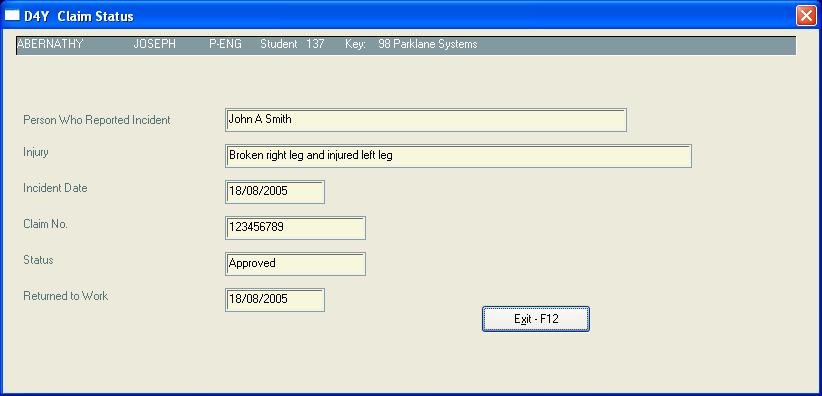
If given the
rights to do so, the Express User may view the status of a claim.
Within in the limits of their access rights, the Express User may view the
status of any claim.
6.
When an Express
User adds an incident, or comments, or a return-to-work date. several things
happen:
·
An email is
automatically sent the Super User(s).
·
The Incident Menu indicates that there has
been “Incident Activity”.
·
D41-Added Incidents, is a log of all records that have been added to the
system by Express Users and have yet to be reviewed by a Super User.
Summary of Incident Access
When entering subsequent
information, Express users may access incidents within their department
restrictions and under the following conditions
·
Modify an
Incident:
Express user may modify an incident they entered until the super user
opens the incident or gives the Express user access again.
·
Add a
Recurrence:
Express user may add a REO to any lost time claim.
·
Add
Comments to an Incident: Express user has access all incidents to
enter comments.
·
View
Claim Status: Express user has access to all
incidents.
·
Enter
Return to Work Date: Express
user has access to any Lost Time incident that does not have a RTW date.
·
Complete
Return to Work Form: Express user has access to Lost Time incident
that does not have a RTW date.
Express User Restrictions
There are 2 tiers (levels) of restrictions for Express
Users that you may choose from.
Tier 1
·
Express Users
have access to all fields on the incident.
They can view limited demographic information and have the ability to
print.
Tier 2
·
Express Users
cannot view any demographic information except the basics such as name.
Employee id, department. Address, etc is
blocked on the WCB/WSIB forms.
·
All print buttons
are de-activated.
·
User can provide
complete details regarding “What happened” and “What the worker was doing” but
cannot complete the abbreviation versions that usually appear on the WCB/WSIB
forms.
Tier 2 has an option to allow the user to be able to
print a streamline version of the Incident.
Setting Up Info-Express
·
Contact Parklane Systems to obtain the information in regards to the
technical requirements. This information
is also provided in the Share guide on our website.
·
Parklane Systems will provide the key to activate InfoExpress.
·
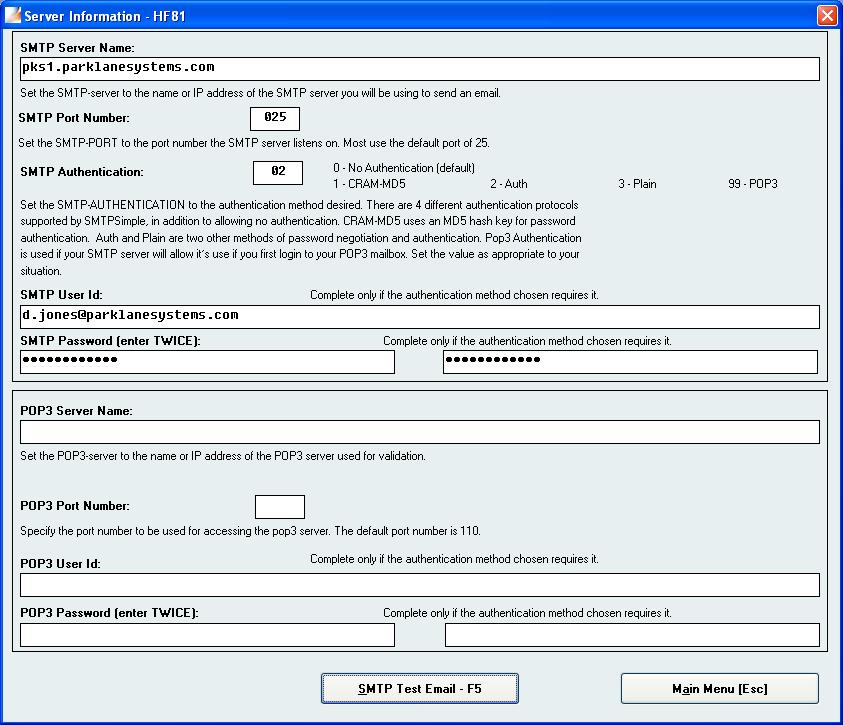
Have a technical person complete the Email Server Technical information
in Maintenance Module.
·
Enter all of your Super Users under Security. Anyone who is to be notified by email about
an incident, but will not be a user of Parklane must also be entered.
·
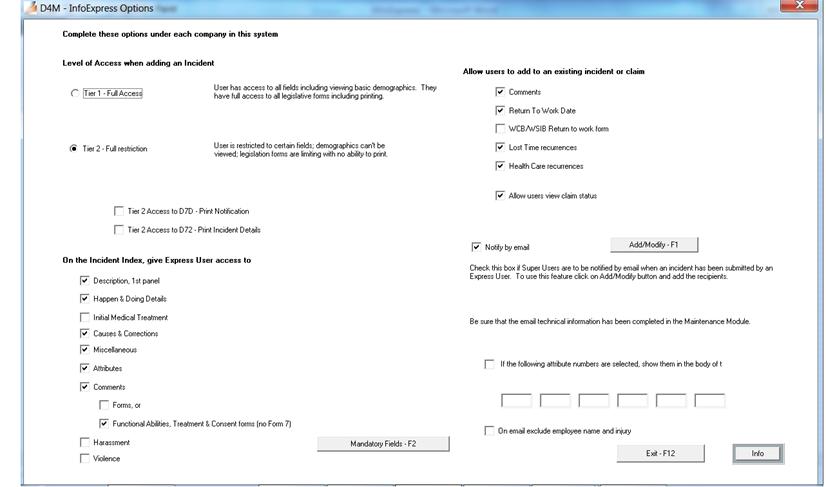
Go to the Incident Reporting
Module and under Options, click on InfoExpress Options. On this page indicate the options that
apply. (If you have the multi-company
option, this page must be completed for each company).
·
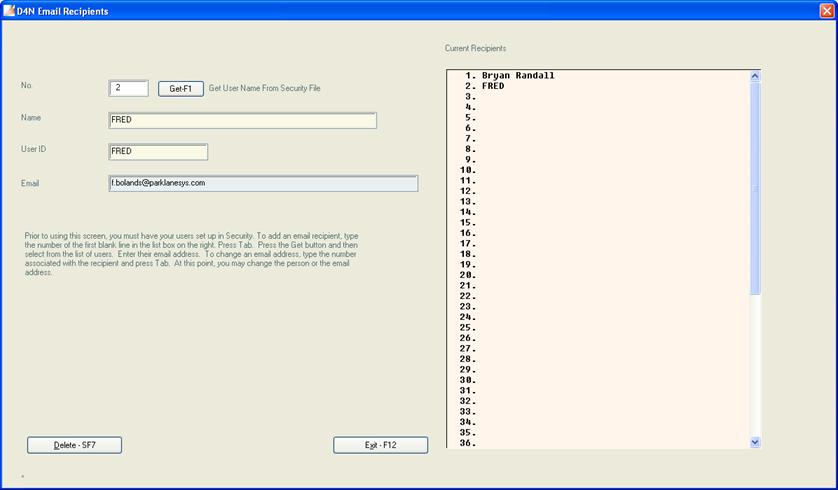
Enter the names and addresses of the email recipients. To go to the
panel below click on Add/Modify on the panel above. You may have up to
20 recipients. If you have the
multi-company options, the recipients may vary by company.
·
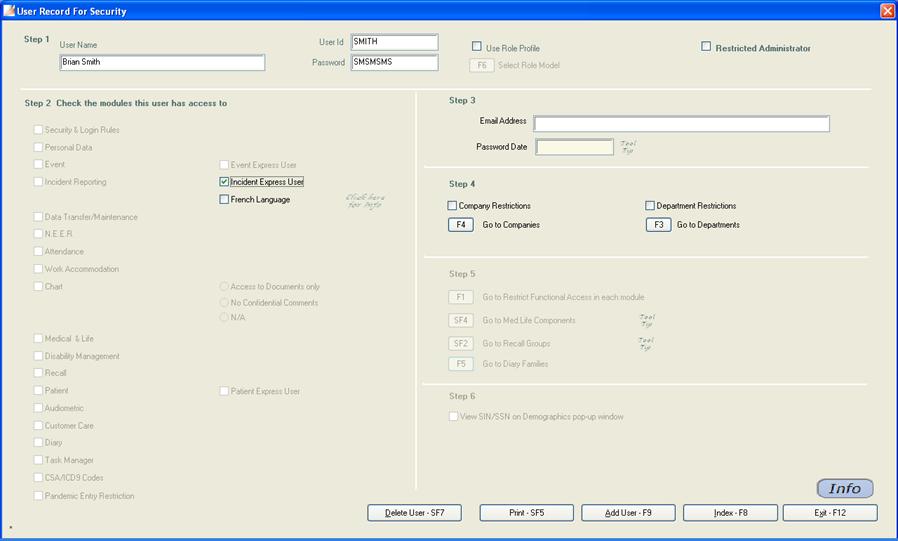
Under Security, add all of your Express Users. For each user, only check the Express User box to the right of the
Incident Reporting Access box. At this
point, you may define the departments that he/she are restricted to.
Attributes
When adding an incident,
Express Users may be given access to the Attribute panel. You can allow an Express User
to select from all of your Attribute Descriptions or
restrict them to certain ones. The maximum number that you may select is 100.
How it works:
·
In Personal Data, go to Manage
Attribute Sets.
·
Add a new Attribute Set and make sure
you give it the name InfoExpress
·
Select the Attributes that are to be
used by the InfoExpress users.
When an InfoExpress
user enters an incident, the only Attributes he/she will see
are the ones in the InfoExpress Attribute
Set.
Managing Incidents Entered Via InfoExpress
As incidents are entered
through InfoExpress, there is an indicator on the Incident
Reporting Menu.
Under Incidents,
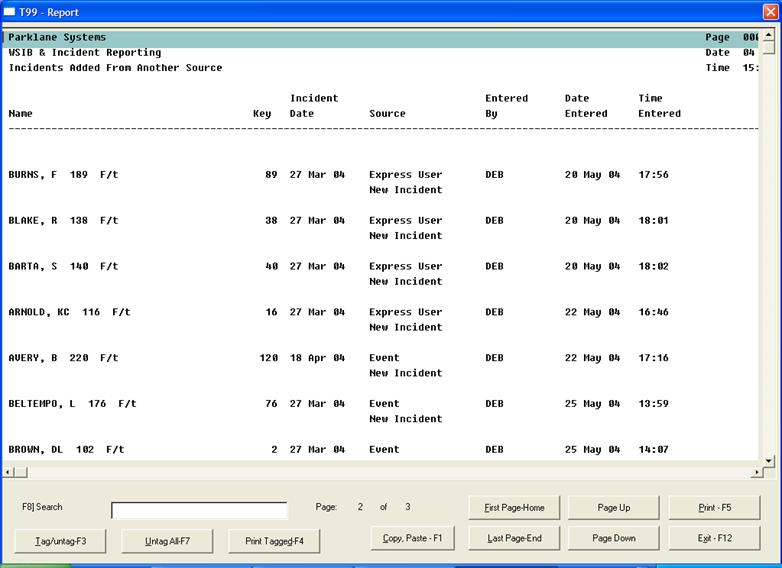
there is a log available called, “View Added Incidents”.
This log summarizes the
information that had been entered:
·
Name of employee
·
Date of incident
·
Source – InfoExpress
·
The name of the person who entered the
information
·
What the information is: i.e., new incident, comments, return to
work date
·
The date and time of entry
Report D41 – View Added Incidents
Open Incident
Under Open
Incident, the List of Incidents panel includes which incidents that
had been entered though InfoExpress. To the right of the incident date there will
be two “**” indicating that the incident has not yet been reviewed by a Super
User.
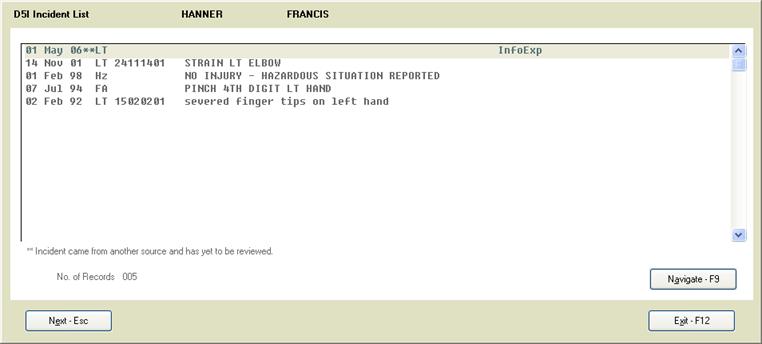
Once the incident has
been reviewed, the asterisks will be removed and that incident will be removed
from the log.