Corrective Actions Enhancement
The following enhancements to Incident Reporting's Corrective Actions are now available for download:
- Persons Responsible can respond to Corrective Actions link multiple times
- Multiple responses are all recorded in the Corrective Actions Details panel
- Automatic email notifications for overdue Corrective Actions are now available
- CC email field available in Corrective Action Details panel
- CC email field available for automatic email notifications
Automatic email notification setup
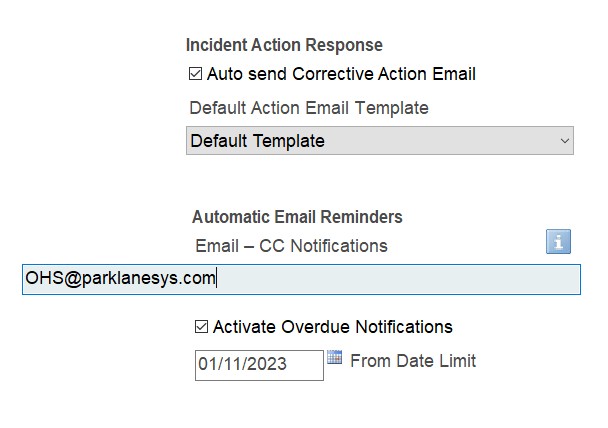
In Incident Reporting select: More > Options > Supervisor/Employee Report Options > Form Options.
- Check box labeled "Active Overdue Notifications".
- Enter the date of how far back you wish the system to look for overdue corrective actions (not entering a date will result in the system looking for overdue corrective actions as far back as it can find).
- Should you wish to receive a copy of the overdue notifications that are sent, enter the email address in the CC Notifications field.
- Overdue email notifications are sent every Monday morning after midnight.
Corrective Actions Details Panel
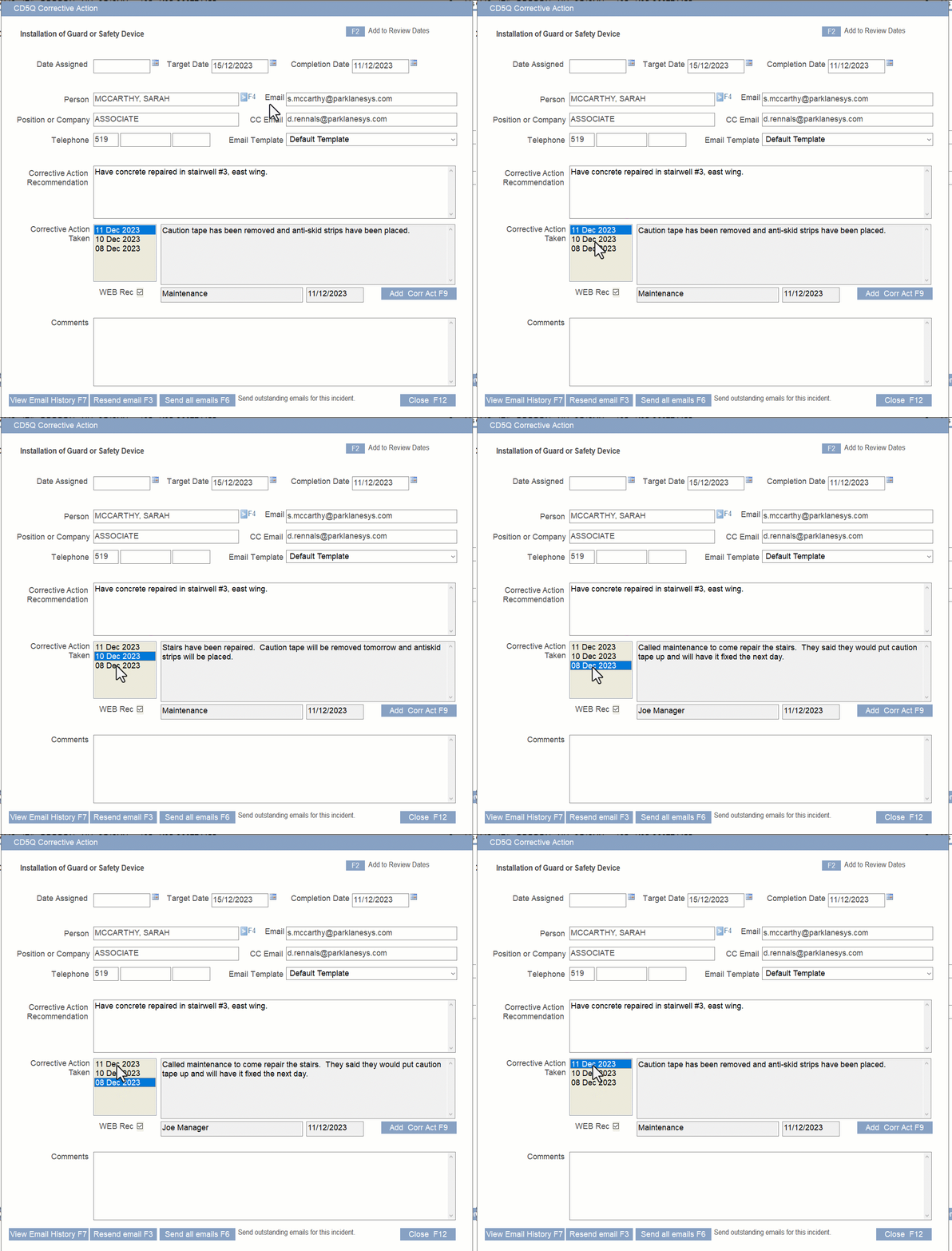
Each corrective action response is now collected on the Corrective Action details panel (see below).
- Highlighting each date (as seen below) will display the received corrective action, who sent it and the date it was sent.
- To add a manual Corrective Action, select Add Corr Action - this will provide a blank field to enter any information manually. Once the user exits and re-enters at a later date, the manual action will be dated and WEB Rec will not be selected.
- Note: The multiple responses feature will occur after first use. Any historical corrective actions will still be copied over if an additional response comes in the first time.
Still to come
- CC Email field will be available soon on Parklane's Online Incident form and custom KICS Incident Integration forms.
- An Excel Graph Report is being developed that will display all received Corrective Actions. Current reports will display the most recent response.
Note: Corrective Action Email Audit (Excel report) currently provides all responses. This can be found by clicking More > Options > Corrective Action Email Audit.
You are receiving this email because you are a customer of Parklane Systems.
To Unsubscribe from further emails, please Click Here,
or reply to this message with Remove as the subject line.
To Unsubscribe from further emails, please Click Here,
or reply to this message with Remove as the subject line.